How to Add Your WPBrigade Certificate to LinkedIn
Showcase your achievement on LinkedIn by adding your WPBrigade certificate to your profile. Follow these simple steps to make your credential visible to your network and potential employers.
Step 1: Go to Your LinkedIn Profile
Log in to your LinkedIn account and navigate to your profile page by clicking on your profile picture or name in the top navigation bar.

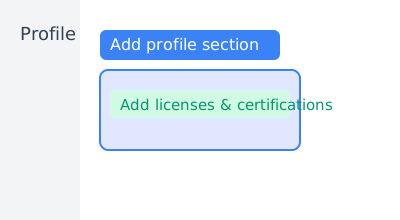
Step 2: Add a New Certification
Click on "Add profile section", then select "Recommended" → "Add licenses & certifications".
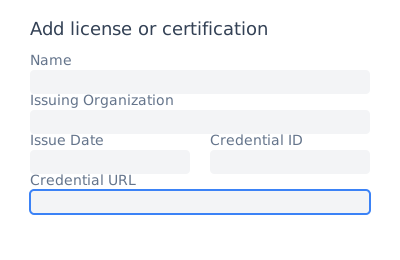
Step 3: Fill in Certificate Details
- Name: Enter the name of your certificate
- Issuing Organization: Enter "WPBrigade"
- Issue Date: Enter the date on your certificate
- Credential ID: (Optional) Enter the unique ID from your WPBrigade certificate
- Credential URL: Paste the verification link from WPBrigade
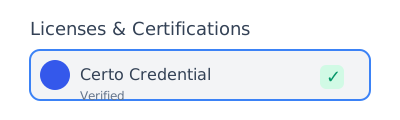
Step 4: Save and Showcase
Click "Save". Your WPBrigade certificate will now appear in the "Licenses & Certifications" section of your LinkedIn profile. Visitors can click the credential to verify it on WPBrigade.
Need Help?
If you have any questions or need assistance, feel free to contact us.